PS5 Controller Test

Check every input on your PS5 DualSense right here in the browser — the shapes, the D-pad, both sticks, the analog triggers and the touchpad click. Nothing to install, and a straight answer on where a browser stops being able to help.

  1. 1Connect over USB or Bluetooth
  2. 2Press any button to detect it
  3. 3Work through every input, then hit Run drift test
Controller Tester Press any button to connect
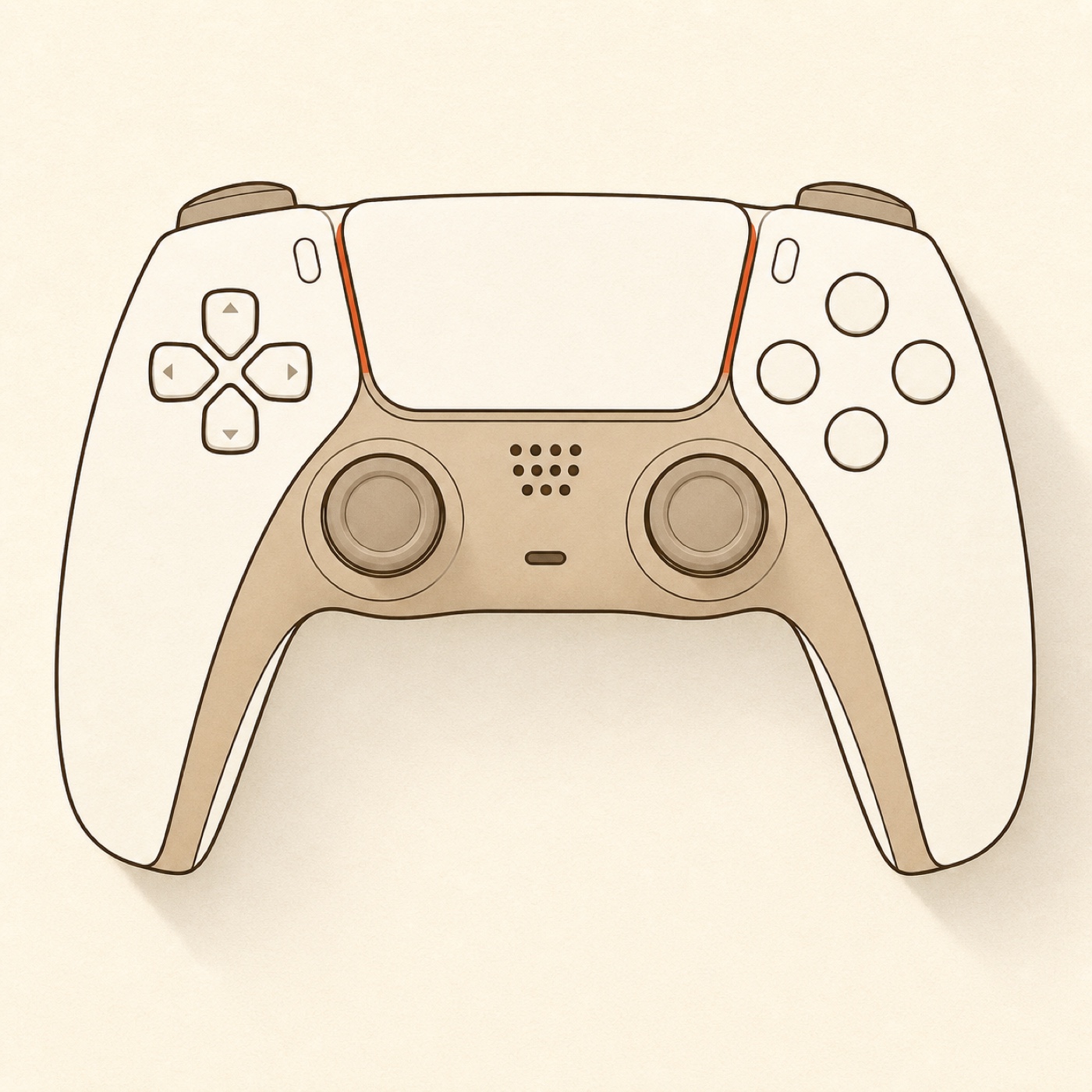
A PlayStation controller diagram — its buttons, sticks and triggers light up as you test each one; the two grips carry the rumble-motor glyphs and what you reported about each.
Press anything — each button and stick lights up here, so you see at a glance what works.

Stick health

Run the quick check to see your sticks’ resting health.

Vibration dual-rumble

buzzing the left grip… Did you feel it?
buzzing the right grip… Did you feel it?
buzzing both grips… Did you feel both?
buzzing both grips, gently… Did you feel that softer one?

Hold the pad while you press it — the grip lit on the diagram is the one to feel for.

  1. 1 Left (strong) motor only not tested yet
  2. 2 Right (weak) motor only not tested yet
  3. 3 Both motors, full strength not tested yet
  4. 4 Both motors, gentle not tested yet
Your answers build a checklist here.

Analog sticks

Left

X / Ynot read yet
not moved yet not measured yet
awaiting the drift check

Right

X / Ynot read yet
not moved yet not measured yet
awaiting the drift check

Bumpers and triggers

L1 R1
L2 LT not read yet
R2 RT not read yet

Buttons

press each one to test it
0Cross
1Circle
2Square
3Triangle
4L1
5R1
6L2
7R2
8Create / Share
9Options
10L3
11R3
12D-Up
13D-Down
14D-Left
15D-Right
16PS
17Touchpad

What we can and can't test

Sticks, buttons, D-pad, bumpers, triggers, L3 / R3, Create / Options
All read directly from the browser's Gamepad API. If it lights up here, it works.
The PS button, and the pairing button
The operating system swallows these before the browser sees them. A dimmed button here is normal, not a fault.
How strong a rumble motor is
The vibration check above starts each motor, but the browser never reports back what the motor did. So there is no automated "motor OK": only you can confirm what you felt.
Whether a stick will fail later
We read your stick's current resting offset. A stick held off-center reads like drift, so let go before running the test.

The button map

Every DualSense input, named the way Sony names it.

The diagram above is a DualSense, not a generic pad with the wrong labels stuck on it. Press ✕ and the ✕ zone lights up.

Face buttons — ✕ ○ □ △
Each shape is its own zone on the diagram. They stay marked once you’ve pressed them, so you can work around the pad without keeping track yourself.
D-pad — up, down, left, right
All four arms read independently. A dead arm on a D-pad is one of the more common DualSense faults, and it shows up here immediately.
L1 / R1 bumpers
Simple on/off buttons. They light while held and stay marked afterwards.
L2 / R2 triggers — analog
These aren’t on/off. The browser reads how far you’ve pulled them, so the pressure bar tracks your finger through the whole travel. A trigger that jumps straight to full, or never reaches it, is worth investigating.
Left and right sticks
Both sticks report live position, and the summary line flags a stick that isn’t sitting cleanly at rest. L3 and R3 — pressing the sticks in — are read as their own buttons.
Touchpad click
The touchpad is a real button, and pressing it registers here. Swipes across its surface are a different matter — see the limits below.
Create and Options
Both read normally. Create on a DualSense is Share on a DualShock 4 — same button.

Stick drift

Is your DualSense drifting?

Drift is when a stick sends input while you’re not touching it — the camera creeps, the character wanders. It’s the DualSense complaint you’ll find most of online, and because the cause is wear, an offset doesn’t tend to fix itself.

The tester above flags a stick that isn't resting cleanly, in one quiet line. If that hint appears, or a stick already feels wrong, the stick drift test is the tool for it: it samples each stick at rest for about two seconds and returns a straight PASS, DRIFTING or FAIL with the measured resting offset, plus the cheapest-first fix order — recalibrate and raise the deadzone, clean the contacts, and only then replace anything.

Honesty

What this test can & can't tell you

A browser gets a deliberately narrow view of your controller. Most testers quietly skip that part; we’d rather you know exactly where the line is, so a dark button never sends you shopping for a replacement you don’t need.

✓ It can

  • Read every button the browser is given: ✕ ○ □ △, the D-pad, L1/R1, L3/R3, Create, Options — and the touchpad click.
  • Read L2 and R2 as analog pressure through their full travel, not just pressed or not.
  • Show both sticks live and flag one that isn’t resting cleanly.
  • Buzz each rumble motor from the vibration check built into the tool above — left, right and both — so you can confirm by feel that each one fires, wherever your browser exposes them. The standalone vibration test runs the same walk for any controller.

✗ It can't

  • Test the PS button — your operating system takes it before the browser sees it. Dimmed here means expected, not broken.
  • Command the adaptive triggers. It reads how far L2/R2 travel, but the Gamepad API has no route to the trigger motors. WebHID does — on desktop Chrome and Edge, once you grant a page permission to the pad — and that’s a different tool from this one.
  • Read touchpad swipes, the gyro or the light bar. None of them are in the Gamepad API this test runs on; here, only the touchpad click comes through. WebHID reaches them too, under the same desktop-and-permission terms. Your mic is a different story: that’s audio, not controller data, and no browser reads it off the pad this way.
  • Measure how strong a rumble motor is. Even the vibration test only asks a motor to buzz and takes your word for what happened; no browser gets a reading back, so nothing any of them reports about motor health would be real.
  • Draw you a DualShock 4. Your browser usually does name the exact model, and the badge above prints it. What doesn’t change is the picture: both pads share one standard layout, so the diagram stays a DualSense — and the test stays correct for both.

Troubleshooting

DualSense not showing up? Try these in order

Nearly every "my PS5 controller doesn’t work" case on a PC is one of these five, roughly in this order of likelihood.

Nothing appears at all
Press any button first. Browsers deliberately hide a controller until it sends its first input, so a freshly connected pad is invisible until you touch it. Still nothing? Re-seat the USB-C cable — plenty of cheap cables carry power but no data — or re-pair over Bluetooth and refresh. Sony’s pairing sequence is fussier than most people remember, and it’s the step that usually goes wrong: the controller has to start with its player indicator off, so hold the PS button until that light goes out and unplug the cable, and only then does holding create and PS make the light bar blink.
Paired, but the browser cannot see it
Something else has claimed it, and on a PC that’s usually Steam. Valve documents that Steam Input injects an emulated Xbox controller for games to read; it says nothing about browsers, so treat this as a symptom rather than a rule. Fully quit Steam — not just close the window — or turn off its PlayStation controller support, then refresh this page.
Buttons are mapped to the wrong shapes
Almost always a remapping layer rather than the pad: a DualSense sends a standard layout, so scrambled shapes point at Steam Input, DS4Windows or a similar tool translating it. Close it and re-test here to see the controller's raw truth.
The pad works here but not in one game
Then the controller’s fine and the game is the problem — check its input settings, or whether it needs a controller profile. A pad that reads perfectly on this page is sending exactly what it should.
Rumble does nothing
Try the vibration check inside the tool above: it buzzes each motor and you confirm by feel. If its buttons are greyed out, your browser exposes no rumble route for this pad — the ordinary case for a DualSense, since Chrome and Edge carry rumble paths for Xbox and DualShock 4 pads but not for this one, whatever you’re running. That’s a gap in the browser, not a fault in your hardware, and the way to settle it is the pad itself: if it rumbles on a PS5, the motors are fine.

Testing a different pad? The general controller test detects whatever you connect and adapts to it.

FAQ

PS5 controller test FAQ

The short answers. The tool above and the sections on this page cover the rest.

Is this PS5 controller test free?

Yes. The whole test is free, with no sign-up, no download and no extension. Connect the controller, press a button, and every input lights up as you try it.

How do I test my PS5 controller?

Plug the DualSense in over USB or pair it over Bluetooth, then press any button so the browser is allowed to see it. The diagram above lights up as you press each button, pull each trigger and move each stick. Anything that stays dark after you have tried it is worth a closer look.

Do I need a cable, or does Bluetooth work?

Both work. USB is the steadier of the two for a first test, because there’s no pairing to go wrong. If you came to compare their speed, though, this page can’t settle that and it’s worth knowing why: it reads your pad through the Gamepad API, which the W3C spec recommends sampling once per animation frame — about every 16.7ms at 60Hz. That window is wider than the gap between a wired and a wireless pad, so any site quoting you an exact Bluetooth latency figure is quoting something the browser never measured. If something reads oddly over Bluetooth, re-test wired before you blame the hardware — a weak link can look like a fault that isn’t there.

Why is the PS button dimmed and untestable?

Your operating system claims the PS button before any website can see it. That’s how the browser stops a page from hijacking a system control, and it’s why the button sits dimmed here — expected, not a fault. Every tester built on the Gamepad API hits the same wall.

Can this test my DualSense adaptive triggers or haptics?

Not from this test. This page runs on the Gamepad API, which reads L2 and R2 as analog pressure — that’s the bar you can see above — but has no route to the trigger motors, and doesn’t carry the DualSense’s fine-grained haptics either. That’s a limit of this API, not of the web: WebHID can reach both, and an open-source demo called DualSense Explorer sets trigger effects and the light bar that way. The catch is that WebHID is desktop Chrome and Edge only, with no version in Firefox, Safari or any phone browser, and every page has to ask your permission for the controller in a browser dialog first. That’s a different tool from this one, and for now the PS5 itself is still the easy way to feel what the triggers do.

Does the touchpad work in this test?

The click does — press the pad down and its zone lights up like any other button, because the Gamepad API exposes it as one. Swipes and finger position don’t come through that API, so this page doesn’t pretend to test them.

Does this work with a PS4 DualShock 4 as well?

Yes. Both controllers report themselves to the browser as Sony hardware on the same standard layout, so a DualShock 4 tests exactly the same way here — the shapes, sticks, D-pad, L1/R1/L2/R2 and touchpad click all read fine. The badge above will usually name your exact model, but the diagram stays a DualSense either way: one layout serves both, and there is no separate DualShock drawing to switch to. The button that reads "Create" on a DualSense is "Share" on a DualShock 4; everything else is the same.

My PS5 controller works here but not in my game — why?

That points at software, not the pad. If every input reads correctly on this page, the controller is sending what it should and the problem is downstream: the game’s input settings, a missing controller profile, or a layer like Steam Input intercepting it. Steam is the usual culprit on PC — it wraps the driver and can hide or remap the pad.

Is my DualSense drifting?

This page shows you what your sticks are doing right now, and if you let go of them and press Run drift test it will flag a stick that isn’t resting clean. That flag is deliberately quiet. For an actual verdict — PASS, DRIFTING or FAIL, with the measured offset — run the dedicated stick drift test, which samples each stick at rest and grades it against a fixed threshold. For a sense of scale: iFixit’s 2021 teardown found Alps rates the stick potentiometer at 2,000,000 cycles, which iFixit’s own back-of-envelope maths put near 417 hours of play — roughly 209 days at two hours a day. That is the part’s rated life and not a countdown, though. iFixit is explicit that a stick "could fail earlier, or keep working fine for much longer", which is the honest answer to when yours will go.

Does my controller data get uploaded?

No. The test itself runs entirely in your browser, through the Gamepad API — nothing about your controller, and nothing you press, leaves your device. There is no account, no upload and no logging of your inputs.
More controller tests

Keep checking your pad

Think a stick is drifting?

This page shows you what your DualSense is doing. The stick drift test grades it — a straight verdict on each stick with the measured offset, and the honest fix order before you spend anything.

Run the stick drift test