If a button on your Xbox controller feels mushy, double-presses, or stops responding mid-game, the quickest way to know what’s actually wrong is an Xbox controller button test that lights up each input the instant you press it. The Xbox console has no built-in screen that shows you which buttons are firing, so the reliable move is a browser test that reads the controller directly and shows every button, bumper and trigger in real time.
This guide shows how to run an Xbox controller button test in under a minute, what a healthy button should look like, and how to tell a worn button apart from a connection or firmware problem. No app, no account, nothing to install.
Why test your Xbox controller’s buttons
Buttons are the part of a controller you hit thousands of times a session, so they wear, stick, and fail more often than anything except the sticks. A button test is worth running whenever:
- A button doesn’t register every press, or needs a harder push than it used to.
- A button sticks down or fires twice from one press (a worn or dirty contact).
- A bumper or trigger feels dead, or a trigger no longer reaches full pull.
- You dropped the controller or spilled something near it and want to confirm nothing broke.
- You’re buying a used or refurbished controller and want to check it before the return window closes.
The point of an Xbox controller button test is to turn a vague “this feels off” into a clear yes or no for each individual input, so you know whether to clean it, update it, or replace it.
How to run an Xbox controller button test (in your browser)
The Xbox itself can’t display raw button activity, so you test the controller from a computer instead. A browser-based tester reads the controller through the Gamepad API and lights up each button as you press it.
Step by step
- Connect your Xbox controller to a PC or Mac with a USB-C cable, or pair it over Bluetooth (hold the Pair button on the top edge until the Xbox logo flashes, then pair from your computer’s Bluetooth menu).
- Open the free controller tester in your browser.
- Press any button so the page detects the controller — browsers hide a gamepad until it sends its first input.
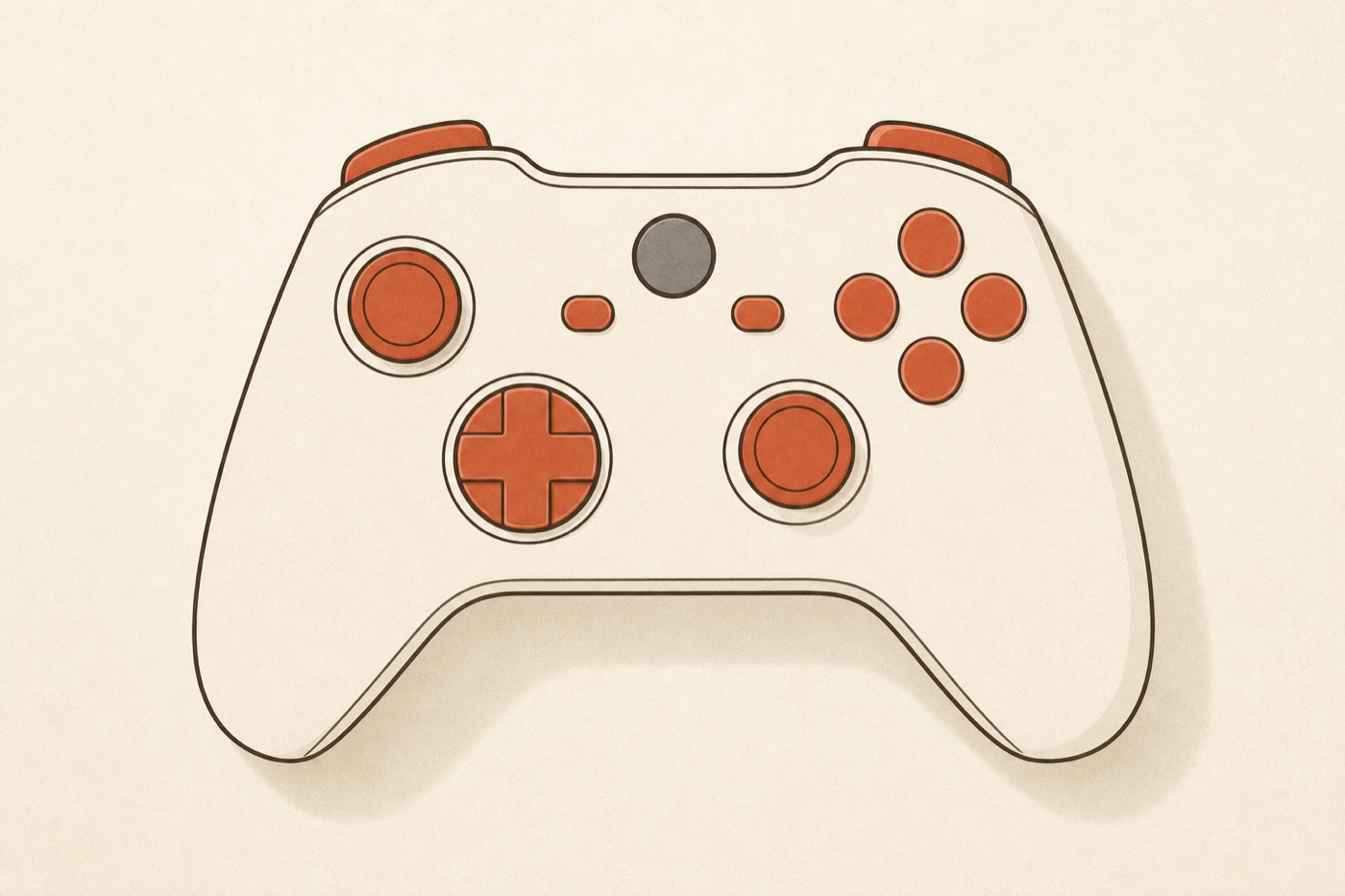
- Work through every input one at a time: the A / B / X / Y face buttons, the D-pad, the LB / RB bumpers, the LT / RT triggers, the View and Menu buttons, and a click of each analog stick (L3 / R3).
- Watch the on-screen controller. Each input should light up the instant you press it and go dark the instant you release. Anything that stays dark, lags, or stays lit is the button to investigate.
That’s the whole test. Because it runs locally in your browser, nothing about your controller is uploaded anywhere — the reading happens entirely on your own device.
What an Xbox controller button test checks
A good button test covers every input a browser is allowed to read:
- Face buttons — A, B, X and Y. Each lights the moment it’s pressed, so a dead or sticky face button shows immediately.
- D-pad — all four directions, which is where worn contacts often show up first on older pads.
- Bumpers (LB / RB) — digital clicks that should register cleanly with no double-fire.
- Triggers (LT / RT) — these are analog, so a good tester shows the partial pull, not just a press. That lets you spot a trigger that no longer reaches 100% or that jitters at rest.
- Stick clicks (L3 / R3) — pressing straight down on each analog stick.
A few inputs sit outside what any browser can read. On Xbox controllers the Xbox guide button, the Pair button, and rumble strength are held by the operating system, so they won’t light up in the tester — that’s expected, not a fault. To check the sticks for drift or the motors for rumble, the homepage tester links straight to the dedicated stick drift test and vibration test.
 Guide button — stays dark (normal)
Lights up when pressed
Guide button — stays dark (normal)
Lights up when pressed
What a healthy button looks like
Run through every input and watch for three things:
- Instant response — the button lights the moment it makes contact, with no delay and no need to press harder than normal.
- Clean release — it goes dark the instant you let go. A button that stays lit for a beat is starting to stick.
- No phantom input — nothing lights up while your hands are off the controller. A trigger or bumper that twitches at rest points to a worn contact.
Do this once on a controller you know is good and you’ll have a feel for “normal” — then any future Xbox controller button test takes ten seconds to read.
Common Xbox button problems and fixes
If the test confirms a button is misbehaving, work the cheapest fixes first:
- A button doesn’t register. Re-seat the USB-C cable or re-pair Bluetooth, refresh the page, and test again — sometimes it’s the connection, not the button. If it’s only one button, the contact under it is likely dirty or worn.
- A button sticks or double-fires. Dust and grime under the button are the usual cause. A little isopropyl alcohol worked in around the button often frees it.
- A trigger won’t reach full pull. Re-run the test watching the analog value; if it caps below 100%, the trigger mechanism is worn.
- Update the firmware. Out-of-date controller firmware causes odd input behavior. Update through the Xbox Accessories app on Xbox or Windows, then re-run the button test.
- Re-test after every step. The whole value of the test is the before and after — if a button goes from dead to lighting cleanly, the fix worked and you can stop.
Test a used or refurbished controller before you buy
A button test is the single most useful check before you keep a second-hand controller. Sellers rarely mention a tired bumper or a trigger that won’t bottom out, and those are exactly the faults a quick Xbox controller button test exposes. Connect it, press every input, confirm each one lights cleanly, then roll the sticks and squeeze the triggers — if anything is dead or sticky, you’ve found it inside the return window instead of three weeks later.
Frequently asked questions
Can I test Xbox controller buttons on the console itself? No — the Xbox has no built-in screen that shows raw button activity. Connect the controller to a computer and use a browser-based controller tester that reads each input directly.
Does the test work over Bluetooth? Yes. Pair the controller with your computer over Bluetooth and the browser reads its buttons the same way it reads a wired controller. USB-C is just slightly more reliable for a clean reading.
Which Xbox controllers does it work with? Xbox Series X|S, Xbox One, and Elite controllers all report through the standard Gamepad API, so the button test works with all of them, wired or over Bluetooth.
The Xbox guide button doesn’t light up — is it broken? No. The guide and Pair buttons are reserved by the operating system and never reach the browser, so they’re expected to stay dark in the test. Every other button should light normally.
Will testing my controller damage it? No. The test only reads the inputs your controller already sends. It changes nothing on the device and uploads nothing.
The honest way to deal with a flaky Xbox button is to test it, not guess. Run the free Xbox controller button test by opening the controller tester, pressing every input, and watching each one light up — you’ll know in under a minute which buttons are healthy and which need attention. Worried about the sticks too? Run the stick drift test while you’re there.