If your aim slides or your camera creeps while your thumbs are resting, your DualSense may have stick drift — and the fastest way to know for sure is to run a proper PS5 controller drift test. The PS5 itself has no built-in drift checker, so the reliable move is a browser test that reads exactly how far each analog stick sits from center and turns it into a plain verdict.
This guide shows how to run a PS5 controller drift test in under a minute, how to read the result, and how to tell real drift apart from a setting that just feels like drift. No app, no account, no soldering.
Why DualSense controllers drift
The DualSense uses traditional potentiometer-based analog sticks. Every time you move a stick, a tiny wiper drags across a contact strip. Over months of play that strip wears, dust works its way in, and the controller starts reporting movement even when the stick is centered. The game reads that phantom input as a real command, so your character drifts, your aim pulls, or menus scroll on their own.
It isn’t a sign you did anything wrong — it’s the wearing mechanism doing what it eventually does. The useful question isn’t why, it’s how bad, and that’s exactly what a PS5 controller drift test measures.
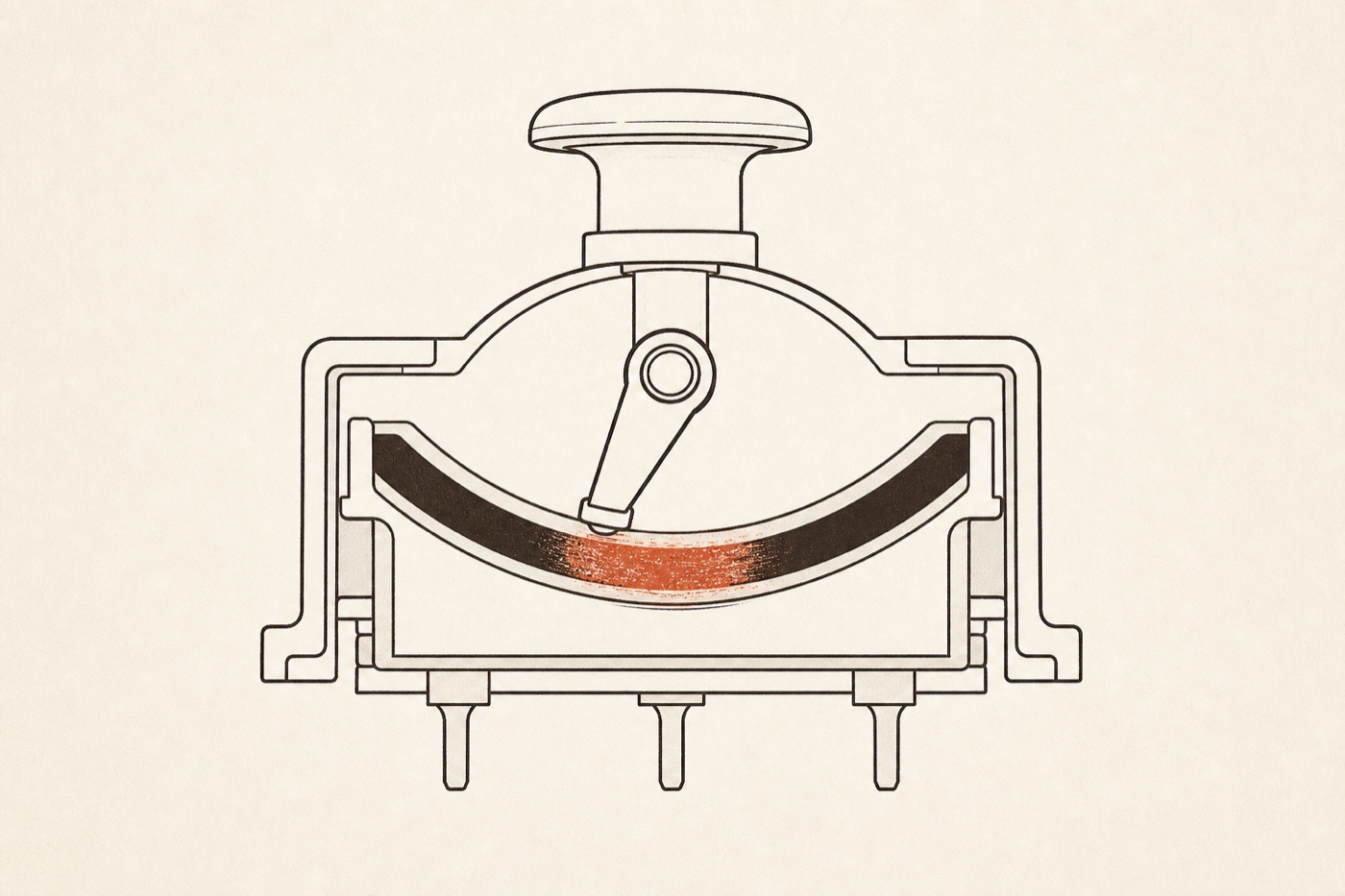 Wiper arm
Resistive track
Worn patch → drift
Wiper arm
Resistive track
Worn patch → drift
How to run a PS5 controller drift test (in your browser)
The PS5 has no menu that shows raw stick values, so you can’t measure drift on the console itself. Instead, plug the DualSense into any computer — or connect it over Bluetooth — and use a browser-based tester that reads the controller through the Gamepad API.
Step by step
- Connect your DualSense to a PC or Mac with a USB-C cable, or pair it over Bluetooth (hold PS + Create until the light bar flashes, then pair from your computer’s Bluetooth menu).
- Open the free stick drift test in your browser.
- Press any button so the page detects the controller — you’ll see it identified as a DualSense.
- Take your thumbs completely off both sticks and lay the controller flat on a table.
- Read the resting position of each stick. The test reports PASS, DRIFTING, or FAIL for the left and right stick separately.
That’s the whole test. Because it runs locally in your browser, nothing about your controller is uploaded anywhere — the reading happens on your own device.
How to read your result
The test reports each stick on its own, because drift usually starts on one stick before the other:
- PASS — the stick rests close enough to dead-center that no game will register it as input. Nothing to worry about.
- DRIFTING — the stick rests off-center by a small but real amount. You may already feel it in fast-paced games, and it tends to get worse. This is the stage to act on early.
- FAIL — the stick reports significant constant input at rest. This is the drift you feel in everyday play, and it points to physical wear.
Write the numbers down. They’re your before reading — if you try any fixes later, you’ll re-run this same PS5 controller drift test and compare, so you can see whether a fix actually moved the number instead of just feeling better.
Is it really drift, or just a deadzone setting?
A stick that wanders isn’t always worn hardware. Two settings produce the same symptom:
- In-game sensitivity set very high makes tiny inputs feel huge.
- A deadzone set too low lets the game react to the smallest resting offset.
The drift test cuts through the guessing because it reads the hardware directly, before any game’s settings touch it. If the test says PASS but a specific game still drifts, the fault is that game’s settings — not your DualSense. If the test itself says DRIFTING or FAIL, the controller is genuinely off-center and no setting change will truly cure it.
PS5-specific things to check first
Before you conclude the hardware is worn, the DualSense has one free fix most owners don’t know about:
- The reset button. There’s a small pinhole on the back of the DualSense, near the Sony logo. Power the controller off, press the button inside with a paperclip for about five seconds, then re-pair. This clears a surprising amount of phantom input and sometimes turns a DRIFTING result back into PASS.
- Firmware. Update the controller through Settings → Accessories → Controllers → Device Software on the PS5. Sony has shipped calibration tweaks in firmware.
- Re-test after each. Run the PS5 controller drift test again after the reset and after a firmware update — if the reading drops into PASS, you’re done for free.
What to do if your DualSense fails the test
If the controller still reads DRIFTING or FAIL after the reset button and a firmware update, the contacts are likely worn and the fix moves into cleaning and, eventually, hardware. The cheapest-first order — recalibrate, raise the deadzone, clean the stick, then replace the module — is covered in detail in how to fix stick drift. The key habit is the same one from this page: re-test after every step and stop the moment the reading returns to PASS.
Frequently asked questions
Can I test PS5 controller drift on the console itself? No — the PS5 has no built-in stick-reading screen. You need to connect the DualSense to a computer and use a browser-based stick drift test that reads the raw stick values.
Does the test work over Bluetooth? Yes. Pair the DualSense with your computer over Bluetooth and the browser reads it the same way it reads a wired controller. USB-C is just slightly more reliable for a clean reading.
Will testing my controller damage it? No. The test only reads the stick position your controller already reports. It changes nothing on the device and uploads nothing.
My test says PASS but a game still drifts — why? That points to in-game sensitivity or a deadzone set too low in that specific game, not hardware drift. Adjust that game’s controller settings.
How often should I test? Whenever a game starts feeling off, and right after you try any fix. Catching drift at the DRIFTING stage is much cheaper to deal with than waiting for a full FAIL.
The honest way to deal with PS5 drift is to measure it, not guess. Run the free PS5 controller drift test with your thumbs off the sticks, note the verdict for each stick, and you’ll know in seconds whether your DualSense needs attention. Want to check the buttons, triggers and rumble too? Use the full controller tester on the homepage.