If your gamepad has stopped rumbling, don’t buy a new one yet — a free, in-browser controller vibration test tells you in under a minute whether the motors are actually dead or the feature is just switched off somewhere. The test sends a signal straight to the rumble motors and lets you feel and see whether each one responds, with no app to install and no game to open.
This guide explains what a controller vibration test checks, how to run one in your browser in under a minute, how to read a PASS or FAIL result, and what to do when the controller won’t rumble at all.
What a controller vibration test checks
A controller vibration test is a browser-based diagnostic that triggers a gamepad’s rumble (haptic) motors through the Gamepad API and confirms that each motor spins. It verifies three things: that both motors respond, that the left and right intensities feel balanced, and that the rumble is steady rather than intermittent — all without installing software or uploading anything.
Most controllers use a dual-rumble design with two motors that do deliberately different jobs: a heavy, low-frequency motor for the deep “boom” of an explosion, and a lighter, high-frequency motor for finer buzzes like a revving engine. On a typical Xbox or DualShock pad the heavy motor sits in the left grip and the light one on the right, though the browser drives them as a strong and a weak channel rather than strictly by side. Newer pads like the PS5 DualSense swap the simple motors for haptic actuators, but the test works the same way — it drives each channel and you confirm the response.
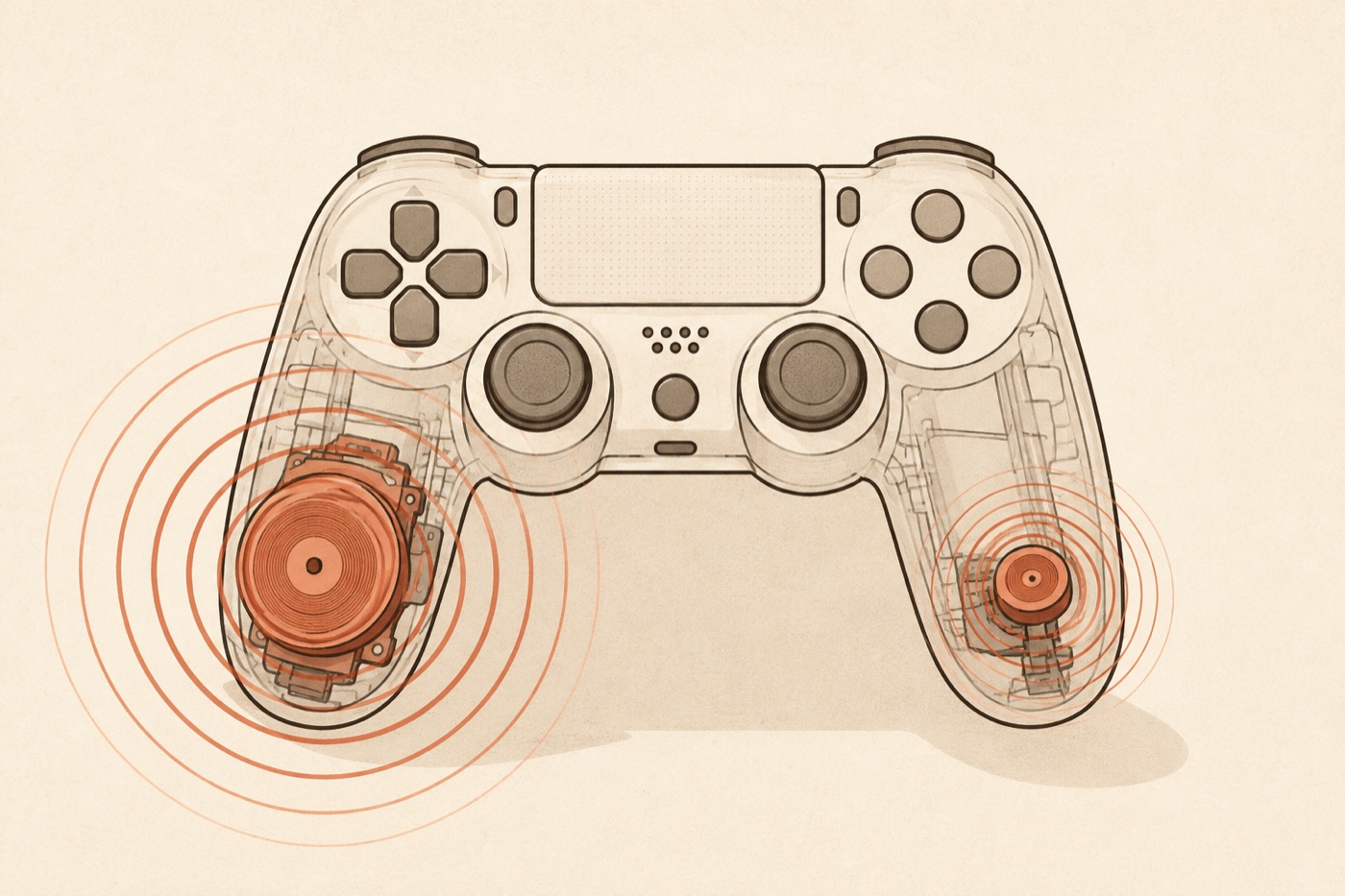
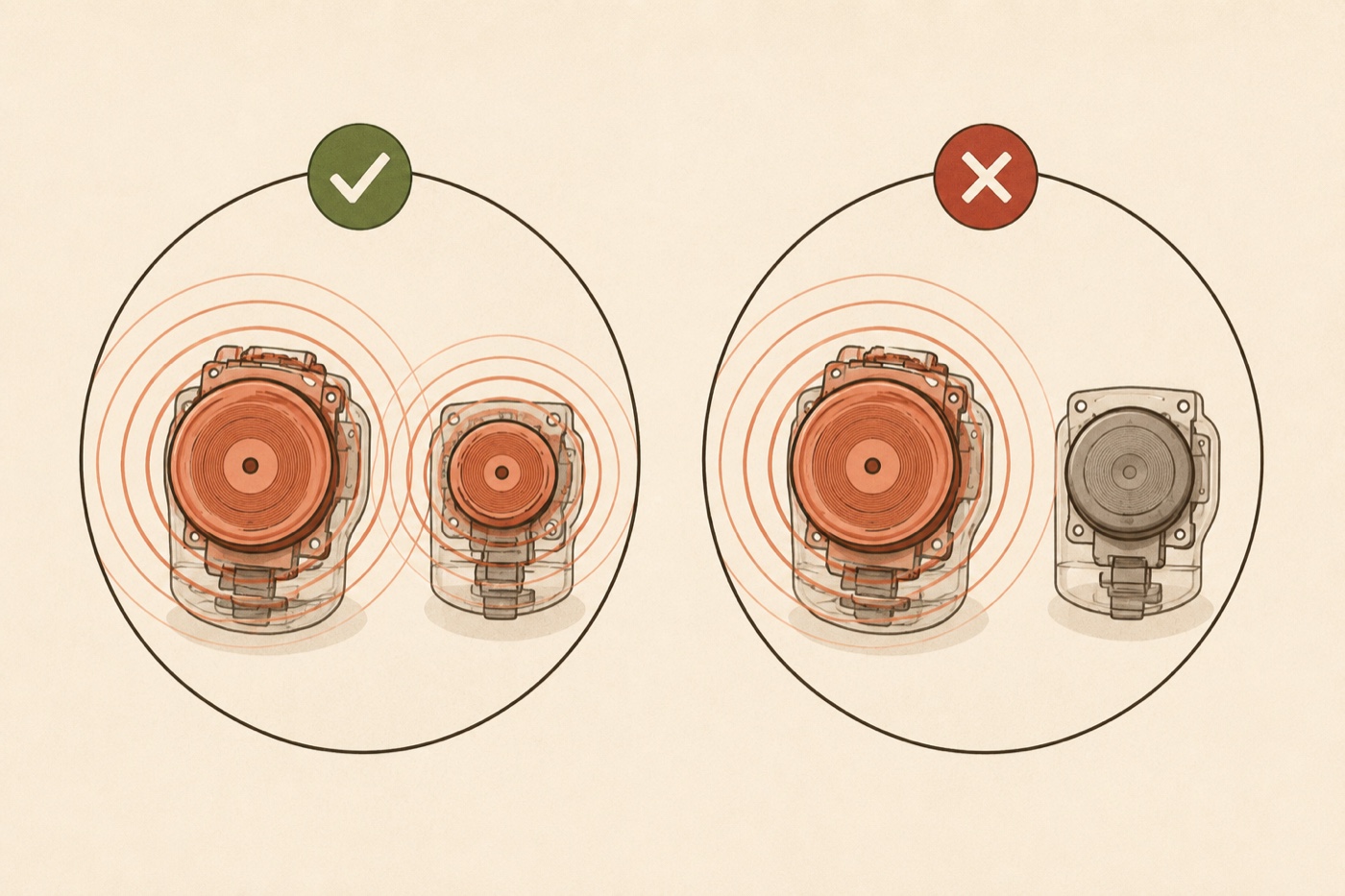
Because the two motors do different jobs, a good vibration test drives them separately. If only one side buzzes, that is a useful clue on its own — it usually means a dead motor rather than a settings problem.
Why run a controller vibration test
Rumble is easy to overlook until it stops, and when it does it is rarely obvious whether the cause is the controller, the connection, or a setting. A vibration test is worth running whenever:
- Games stopped vibrating and you don’t know if it’s the pad or the game’s settings.
- The rumble feels weaker on one side, or only one grip buzzes.
- You dropped the controller or got it wet and want to confirm the motors survived.
- You’re checking a used or refurbished pad before the return window closes.
- You disabled vibration once to save battery and want to confirm it’s back on.
The point is to turn a vague “the rumble feels off” into a clear yes or no for each motor, so you know whether to change a setting, swap the cable, or replace the controller.
How to run a controller vibration test in your browser
A browser-based tester talks to the controller through the Gamepad API, so you don’t need the console or any download. The steps are the same for Xbox, PlayStation, Switch Pro and generic PC pads:
Before you test: browser rumble works reliably only in Chrome, Edge or Opera — Firefox won’t trigger it at all, and Safari only gained the ability in 16.4. Connect over USB rather than Bluetooth for the most accurate result. Testing in Firefox or over Bluetooth is the single most common reason a perfectly good controller shows no vibration.
- Connect the controller to your computer with a USB cable (most reliable for rumble) or over Bluetooth.
- Open a Chromium-based browser — Chrome, Edge or Opera — and go to the Controller Vibration Test.
- Press any button so the browser detects the gamepad and wakes the connection.
- Trigger the left motor, the right motor, and both together, watching and feeling each response.
- If nothing happens, work through the troubleshooting steps below.
The whole check takes well under a minute, and nothing leaves your machine — the test runs entirely in the browser.
How to read the result: PASS or FAIL
A healthy controller answers every rumble command immediately. Use this as your pass/fail guide:
| Result | What you feel | What it means | Next step |
|---|---|---|---|
| PASS | Both motors buzz on command, roughly balanced, steady | Rumble hardware is healthy | Nothing — re-enable vibration in-game if needed |
| One side only | Only the left or right motor responds | That motor is likely dead or disconnected | Try a wired connection, then assume hardware fault |
| Weak / intermittent | Rumble stutters or is barely there | Low battery, Bluetooth dropouts, or a worn motor | Charge or go wired, then retest |
| FAIL | No vibration at all | Browser, connection, or both motors | Work through the troubleshooting list below |
A single silent motor is the most telling result: settings and connection problems usually kill rumble on both sides at once, so one-sided failure strongly suggests a hardware fault. It isn’t proof on its own — an incomplete browser or driver mapping can occasionally mute one channel — so confirm with a USB connection and a second browser before you write the motor off.
Browser and connection compatibility
Rumble support in the browser depends on the controller, how it’s connected, and which browser you use. This is the single biggest reason a vibration test “fails” when the controller is actually fine:
| Controller | Best connection | Browser support | Notes |
|---|---|---|---|
| Xbox (One / Series) | USB or Bluetooth | Chrome, Edge, Opera | Rumble stops automatically on low battery |
| PS5 DualSense | USB | Chrome, Edge | Bluetooth often carries input but not full rumble |
| PS4 DualShock 4 | USB | Chrome, Edge | Wired is most reliable for vibration |
| Switch Pro | USB or Bluetooth | Chrome, Edge | HD rumble feels weaker/faster than console |
| Generic PC pad | USB | Chrome, Edge | XInput pads behave most predictably |
Heads-up on Firefox and older Safari. Vibration playback through the Gamepad API is missing entirely in Firefox — on every system — and Safari only added it in 16.4. If the test shows no vibration, switch to Chrome or Edge and a wired connection before assuming the controller is broken.
Why your controller won’t vibrate in the browser
If the test returns a FAIL, run through these in order — the cheapest, most common causes are first:
- Wrong browser. Re-run the vibration test in Chrome or Edge. Firefox fires no rumble at all, and Safari needs 16.4 or newer.
- Bluetooth carrying input but not rumble. Plug in a USB cable and test again — wired is the most reliable path for vibration, especially on DualSense.
- Low battery. Some controllers reduce or disable rumble on low battery to save power. Charge the controller or switch to USB, then retest.
- Vibration switched off. Check the game’s accessibility/controller settings and, on console, the system-level vibration toggle.
- One motor dead. If only one side ever responds across browsers and a cable, the motor has failed — that’s a hardware repair or replacement.
Working top to bottom separates the easy fixes (browser, cable, battery, settings) from a genuine hardware fault, so you don’t replace a controller that only needed a different cable.
Vibration vs. other controller problems
Rumble is only one of the things that go wrong with a gamepad, and the symptoms overlap. If your real complaint is sticks that move on their own or buttons that miss presses, those need different checks:
- Sticks drifting in menus or aiming on their own → run a stick drift test.
- Buttons that double-press or feel dead → use the full Controller Tester to watch every input live.
Running the right test first saves you from “fixing” the wrong thing.
FAQ
Does a vibration test work without installing anything? Yes. The Controller Vibration Test runs entirely in your browser through the Gamepad API. Nothing is installed and nothing is uploaded.
Why does only one side of my controller vibrate? The two motors are independent, so one silent side almost always means that motor has failed rather than a settings problem — connection and software issues normally stop both motors at once.
My controller vibrates in games but not in the browser. Is it broken? No. That usually means the browser or connection is the limit — try Chrome or Edge with a USB cable. Rumble that works in games is proof the motors are fine.
Can I test PS5 DualSense rumble in a browser? Yes, most reliably over USB in Chrome or Edge. Bluetooth often passes button input but not full rumble, so a wired connection gives the most accurate result.