Unlike a Mac, Windows actually ships with a built-in controller tester — but it’s old, buried, and tells you almost nothing useful when a stick starts to wander. So when a button stops registering, a trigger feels off, or you just want to confirm a new gamepad works before a long session, the fastest check on a PC is a browser-based controller test that reads your gamepad directly and shows every input live.
This guide shows how to test a controller on PC in under a minute, how to open the built-in Windows panel if you want it, and how to read what you see. No app to install, and nothing about your controller is uploaded anywhere.
Windows has a built-in tester — here’s why people skip it
Windows includes an old control-panel applet called “Set up USB game controllers” (you open it by running joy.cpl). Click Properties and you get a basic screen with a cross that moves as you push the sticks and lights that flash as you press buttons.
It works, but it’s dated and limited: the layout hasn’t really changed in years, the axis readout is a rough cross rather than precise per-stick values, and — most importantly — it gives you no clear verdict. A stick that’s slightly drifting looks fine on that little cross until the drift is bad enough to see by eye. There’s also no trigger-by-trigger analog readout and no rumble check.
That’s why a browser test is usually the quicker, clearer option: it shows every input at once, reads each stick’s position as a precise value rather than a rough cross, and works with most Xbox, PlayStation, and third-party pads — with nothing to find in the Control Panel.
Two ways to test a controller on Windows — and why most people pick the browser
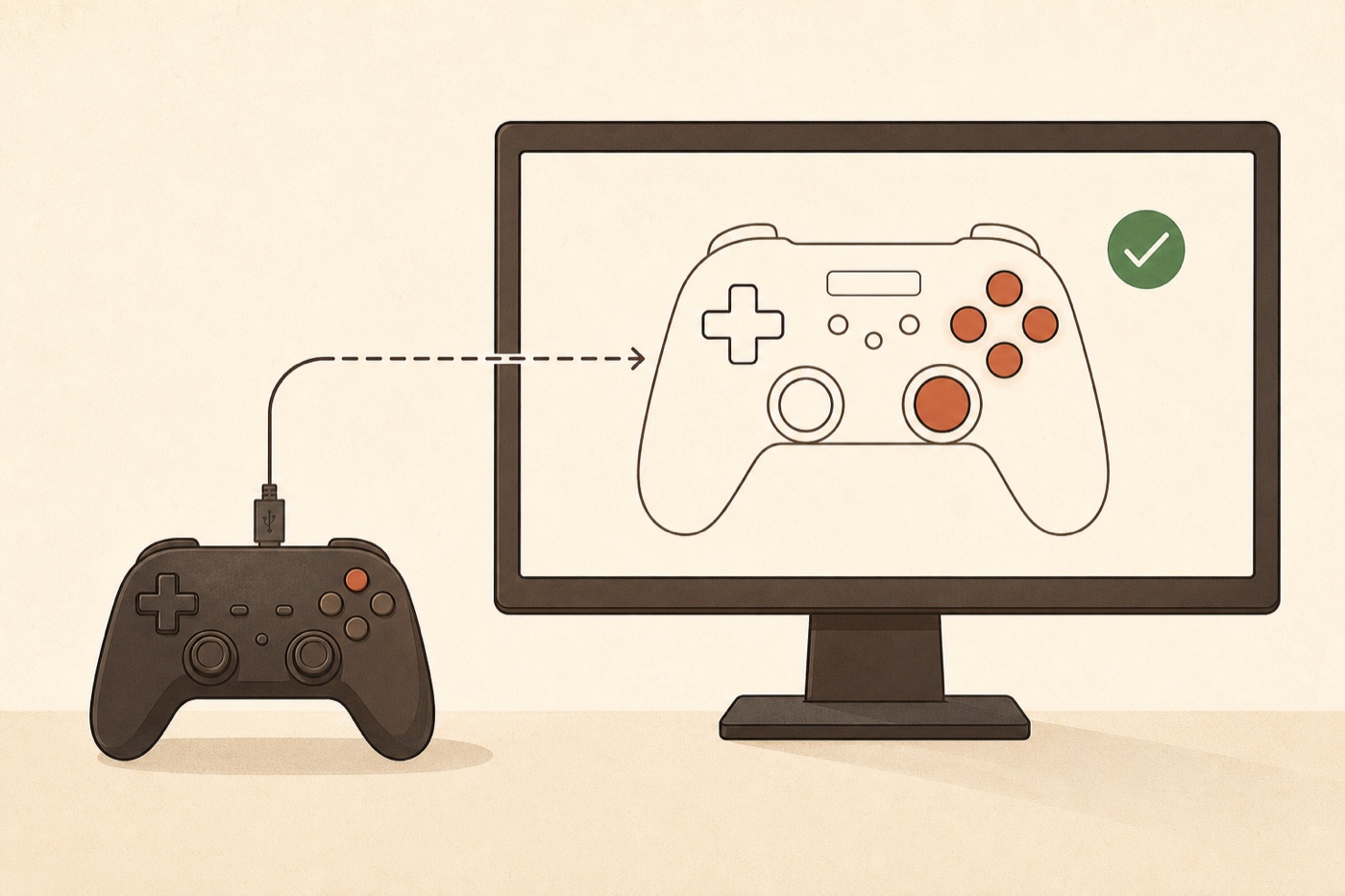
Dated panel, rough axis cross, no clear pass/fail and no trigger or vibration readout — early drift hides on it.
Every input at once, precise stick values rather than a rough cross, plus triggers and vibration — works with most Xbox, PlayStation and third-party pads.
joy.cpl), but it gives no real verdict on stick drift; a browser tester shows every input precisely and works with most controller brands.How to test a controller on PC, step by step
- Connect the controller. Plug it into your PC over USB, or pair it over Bluetooth from Settings → Bluetooth & devices → Add device. A wired connection is the most reliable for a clean reading.
- Open Chrome, Edge, or Firefox. All three read controllers well on Windows. (Edge is built on the same engine as Chrome, so either is fine.)
- Open the free Controller Tester. It runs entirely in the browser.
- Press any button so the page detects the controller. If you connected the pad before opening the page, the browser often won’t list it until you press something, so it can look “not detected” until you do. (Connect it after the page is open and it usually appears on its own.)
- Work through each input. Press every button, pull both triggers, and roll each analog stick in a full circle. The tester highlights what it sees in real time, so anything that doesn’t light up is the thing to look at.
Because the test runs locally in your browser, nothing about your controller leaves your PC — the reading happens entirely on your own device.
What you can check
The browser test covers the parts that actually fail in everyday use:
- Buttons and D-pad — press each one and confirm it registers, with no sticking and no double-fires.
- Triggers and bumpers — pull the triggers slowly and watch the value climb smoothly from 0 to full, rather than jumping.
- Analog sticks — move each stick to its edges to check range, then let go and watch where it rests.
- Stick drift — if a stick reports movement while your thumb is off it, that’s drift. For a flat PASS / DRIFTING / FAIL verdict on each stick, use the dedicated stick drift test — it reads the resting offset and turns it into a plain result you can write down and re-check later.
- Vibration — in browsers that support it (Chrome, for example), the test can trigger the motors so you can confirm rumble works; the controller vibration test does exactly this.
How to open the built-in Windows controller panel
If you’d rather use what’s already on the PC, the built-in tester is two steps away:
- Press Windows + R, type
joy.cpl, and press Enter. - Select your controller in the list, click Properties, and you’ll see the test screen — push the sticks to move the cross, and press buttons to light the indicators.
It’s a quick “is it alive” check. Just remember it won’t flag early stick drift or show you trigger values, so for anything beyond “does the button light up,” the browser test is the clearer read.
If Windows still doesn’t see the controller
Run through these before concluding the hardware is bad:
- Press a button first. Most browsers won’t list a gamepad until it sends an input, so the controller can look “not detected” until you press something.
- The cable carries data. Some USB cables are charge-only and won’t pass controller data — try a different cable or pair over Bluetooth instead.
- Re-pair the Bluetooth connection. Remove the controller in Settings → Bluetooth & devices, then pair it fresh.
- Try another browser. If Chrome shows nothing, try Edge or Firefox — occasionally one handles a specific pad better than another.
- Update the controller’s firmware. For an Xbox pad, the Xbox Accessories app (free from the Microsoft Store) updates the firmware; a DualSense can be updated from a PS5 or the PlayStation Accessories app for Windows. Out-of-date firmware can affect how a controller behaves.
If it shows up and every input responds, your controller is fine on your PC — the problem was the connection or the cable, not the hardware.
Frequently asked questions
How do I open the built-in controller tester on Windows? Press Windows + R, type joy.cpl, press Enter, select your controller, and click Properties. It’s basic, but it confirms buttons and stick movement.
Can I test an Xbox or PS5 controller on a PC? Yes. Most modern Xbox controllers connect over USB or Bluetooth (some older Xbox One pads are USB-only on PC); a PS5 DualSense pairs over Bluetooth or USB. Both are read through the browser’s Gamepad API — open the tester in Chrome, Edge, or Firefox and press a button to start.
Do I need to install anything? No. The browser test needs no app and no account — it runs on the page itself. The built-in joy.cpl panel is already part of Windows if you prefer that.
Does the test show input lag or latency? It shows your inputs in real time so you can spot an input that doesn’t register, but a browser test isn’t a precise latency benchmark — perceived lag usually comes from a wireless connection or in-game settings rather than the controller itself.
My controller works in the tester but not in a game. Then the hardware is fine and the issue is in the game — check that game’s controller settings, or whether it needs a specific input mode. On Steam, you can also confirm the pad under Settings → Controller.
Is it safe — does it send my controller data anywhere? It’s safe. The test only reads the inputs your controller already reports, locally in your browser. Nothing is uploaded.
Testing a controller on a PC comes down to one choice: the dated built-in joy.cpl panel, or a browser test that shows every input at once and actually catches early stick drift. For a quick “does it light up,” joy.cpl is fine — for anything more, open the free Controller Tester in Chrome, Edge, or Firefox and press a button. If a stick looks like it’s drifting, follow up with the stick drift test for a clear verdict.