Windows has a built-in controller panel — Mac doesn’t. So when a stick feels off, a button stops registering, or you just want to confirm a new gamepad actually works before a long session, there’s no obvious “test my controller” screen in macOS to open. The quickest way to check on a Mac is a browser-based controller test that reads your gamepad directly and shows every input live.
This guide shows how to test a controller on Mac in under a minute, which browser to use (this matters more on macOS than people expect), and how to read what you see. No app to install, and nothing about your controller is uploaded anywhere.
Why there’s no built-in controller tester on macOS
On Windows, you can open the old “Set up USB game controllers” panel and watch buttons and axes react. macOS has no equivalent built-in screen. Apple exposes controllers to apps through its frameworks, but it never shipped a user-facing tester, so a working gamepad on a Mac is essentially invisible until a game uses it.
That leaves you two options: install a dedicated macOS app, or run a test in the browser. The browser route is faster — no download, no permissions to grant, and it works with most Xbox, PlayStation, and third-party pads. The one catch is which browser, and that’s the part most guides skip.
Use Chrome or Firefox, not Safari
Browsers read controllers through the Gamepad API. On macOS, Chrome and Firefox have the most complete and mature support — buttons, sticks and triggers all come through, though vibration only works in Chrome: Firefox has no rumble support at all. Safari added Gamepad API support more recently and is less complete in practice, only reaching vibration in 16.4, so a test that works perfectly in Chrome can sometimes show nothing or miss inputs in Safari.
So if you open a controller tester on your Mac and the page says it can’t see your gamepad, don’t assume the controller is broken. Switch to Chrome or Firefox first — that fixes it far more often than anything you’d do to the controller itself.
Test any controller in the browser on a Mac — no built-in panel needed
Newer, less complete in practice — can show no controller or miss inputs.
Most complete, mature support — buttons, sticks and triggers all read; vibration in Chrome, on some pads.
How to test a controller on Mac, step by step
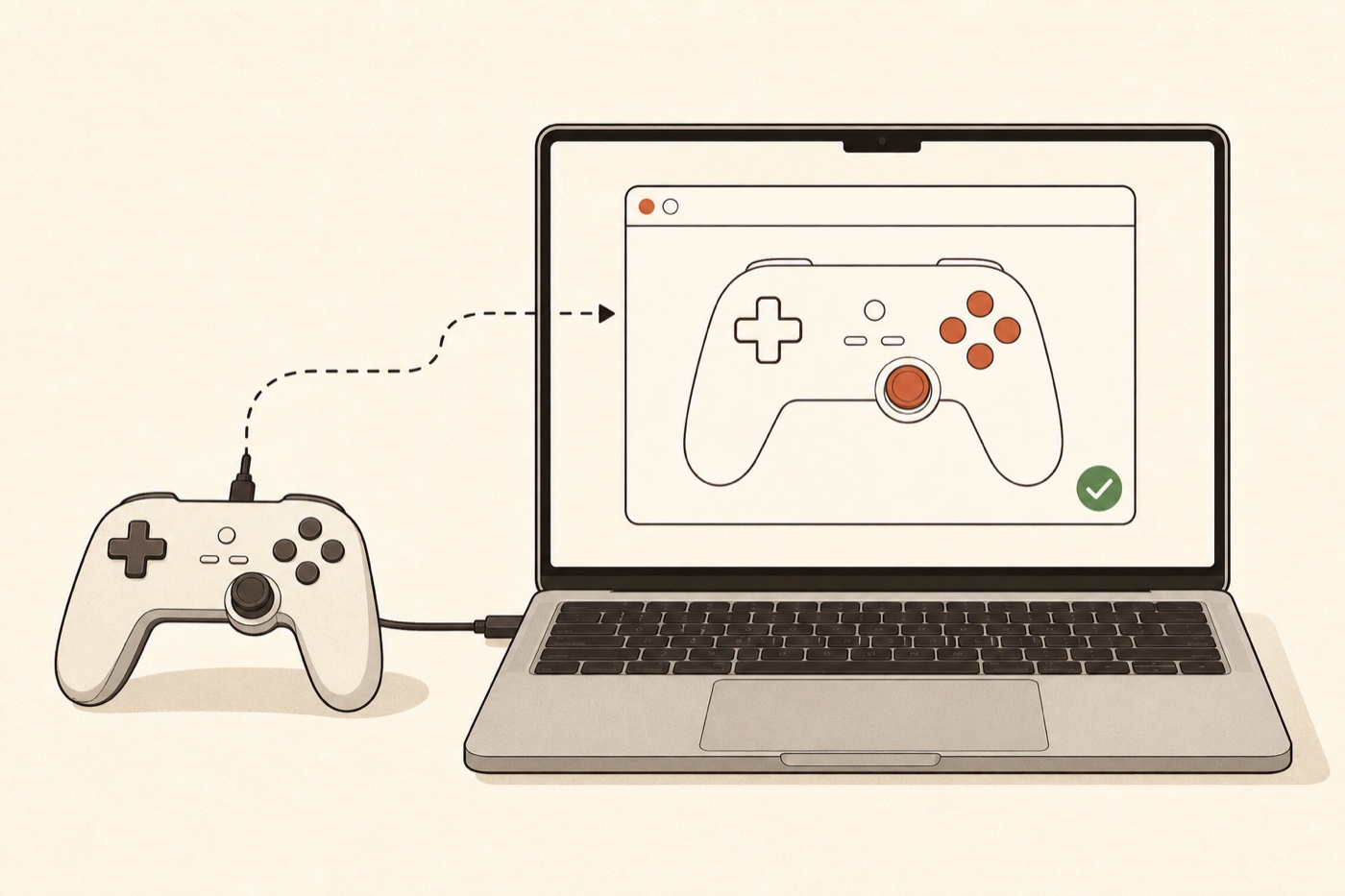
- Connect the controller. Plug it into your Mac with a USB-C cable, or pair it over Bluetooth from System Settings → Bluetooth (hold the controller’s pairing button until its light flashes, then click it in the list). A wired connection is the most reliable for a clean reading.
- Open Chrome or Firefox. Not Safari — see above.
- Open the free Controller Tester. It runs entirely in the browser on your Mac.
- Press any button so the page detects the controller. If you connected the pad before opening the page, the browser often won’t list it until you press something, so it can look “not detected” until you do. (Connect it after the page is open and it usually appears on its own.)
- Work through each input. Press every button, pull both triggers, and roll each analog stick in a full circle. The tester highlights what it sees in real time, so anything that doesn’t light up is the thing to look at.
Because the test runs locally in your browser, nothing about your controller leaves your Mac — the reading happens entirely on your own device.
What you can check
The browser test covers the parts that actually fail in everyday use:
- Buttons and D-pad — press each one and confirm it registers, with no sticking and no double-fires.
- Triggers and bumpers — pull the triggers slowly and watch the value climb smoothly from 0 to full, rather than jumping.
- Analog sticks — move each stick to its edges to check range, then let go and watch where it rests.
- Stick drift — if a stick reports movement while your thumb is off it, that’s drift. For a flat PASS / DRIFTING / FAIL verdict on each stick, use the dedicated stick drift test — it reads the resting offset and turns it into a plain result you can write down and re-check later.
- Vibration — Chrome can trigger the motors on some pads, though not on ours: the controller vibration test covers which and why.
If your Mac still doesn’t see the controller
Run through these before concluding the hardware is bad:
- You’re in Chrome or Firefox, not Safari. This is the single most common reason a Mac shows no controller.
- You pressed a button. The page can’t list a gamepad until it receives one input.
- The cable carries data. Some USB-C cables are charge-only and won’t pass controller data — try a different cable or pair over Bluetooth instead.
- Re-pair the Bluetooth connection. Remove the controller in System Settings → Bluetooth, then pair it fresh.
- Update the controller’s firmware. For an Xbox or DualSense pad this usually means connecting it to the maker’s app once; an out-of-date pad can behave oddly on macOS.
If it shows up and every input responds, your controller is fine on your Mac — the problem was the connection or the browser, not the hardware.
Frequently asked questions
Can I test an Xbox or PS5 controller on a Mac? Yes. Most modern Xbox and PS5 controllers pair over Bluetooth to macOS and are read through the browser’s Gamepad API. Open the tester in Chrome or Firefox and press a button to start.
Why does Safari not detect my controller? Safari’s Gamepad API support is newer and less complete in practice, so it may show nothing or miss inputs. Chrome and Firefox handle macOS controllers more reliably.
Do I need to install anything? No. The browser test needs no app and no account — it runs on the page itself. Dedicated macOS tester apps exist, but for a quick check the browser is faster.
Is it safe — does it send my controller data anywhere? It’s safe. The test only reads the inputs your controller already reports, locally in your browser. Nothing is uploaded.
My controller works in the tester but not in a game. Then the hardware is fine and the issue is in the game — check that game’s controller settings, or whether it needs a specific input mode (some games prefer Xbox-style input).
Testing a controller on a Mac comes down to two things most guides miss: macOS has no built-in tester, and Safari’s controller support is less reliable than Chrome’s or Firefox’s. Use Chrome or Firefox, open the free Controller Tester, and press a button — you’ll see every input live in seconds. If a stick looks like it’s drifting, follow up with the stick drift test for a clear verdict.