If your aim slides on its own, your camera creeps, or your character walks into a wall when you’re not touching anything, you’re probably dealing with stick drift. The good news: you can test for it in about thirty seconds, in your browser, without installing anything. This guide walks through exactly how to do it, how to read the result, and what to do next.
What stick drift actually is
Stick drift is when an analog stick reports movement while your thumb is nowhere near it. The controller tells the game the stick is being pushed, so the game responds — even though you’re holding still.
The cause is mechanical. Most sticks use tiny potentiometers that turn physical position into a voltage. As the contacts wear, the resting voltage stops reading true center. The stick is physically centered, but electrically it isn’t, so the controller sends a small, constant input. People call it controller drift or joystick drift — same fault, different names.
One important caveat: no stick is mechanically perfect. Even a brand-new controller rests a hair off dead-center, which is why games apply a deadzone — a small central area where movement is ignored. A tiny resting value is normal. Real drift is when that resting value grows past what a deadzone can reasonably hide.
How to test your controller for stick drift
You don’t need special software. A browser that supports the Gamepad API (Chrome or Edge are the most reliable) can read your stick position directly.
- Connect the controller. Plug it in over USB, or pair it over Bluetooth. Xbox, PlayStation (DualSense / DualShock 4) and most PC controllers are detected automatically.
- Wake it up. Press any button. Browsers only reveal a controller after it sends its first input, so a single press makes it appear.
- Let go completely. Take your thumbs off both sticks and rest the controller on a flat surface. This matters — a stick you’re touching will read like drift.
- Run the test. Open the stick drift test, press Run drift test, and wait about two seconds while it samples each stick at rest.
- Read the verdict. You’ll get a plain-language result per stick — PASS, DRIFTING, or FAIL — plus the exact resting offset.
The reason a dedicated test beats eyeballing raw numbers is that drift lives in small decimals. A reading of 0.08 versus 0.18 is the difference between “fine” and “starting to fail”, and that’s hard to judge by watching a value flicker.
How to read the result
The test measures your resting offset: how far the stick sits from dead-center as a fraction of full travel, where 0 is perfectly centered and 1.0 is pushed fully to one side. It samples for about two seconds and takes the median, so a one-off twitch can’t fake a fault or hide one.
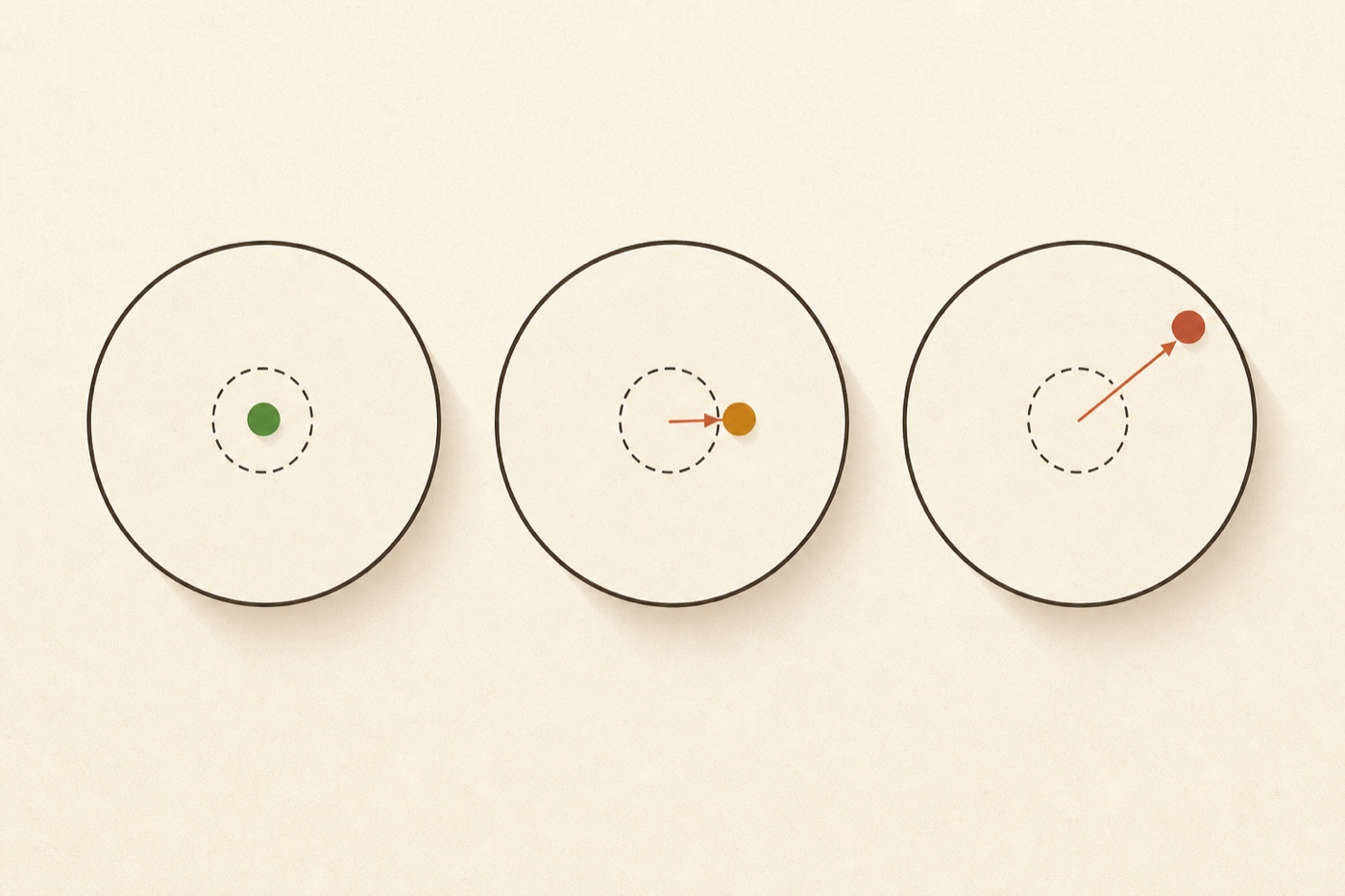
- Under ~0.10 — PASS. Within normal hardware tolerance. The in-game deadzone absorbs this. If you still feel wander, it’s likely a sensitivity or deadzone setting, not the hardware.
- ~0.10 to 0.25 — DRIFTING. Early wear. The resting offset has grown past what a deadzone comfortably hides. This is the band you want to catch it in.
- Over ~0.25 — FAIL. A clear fault. The stick sends a large, constant input on its own.
Test both sticks, not just the one that feels off. Left-stick drift shows up as movement while standing still; right-stick drift turns the camera on its own — people often blame the wrong one. If a reading lands right on a threshold, run it two or three more times. Real drift is repeatable.
What to do if your controller is drifting
If you got a DRIFTING or FAIL result, work through these in order — cheapest and least invasive first. Most drift is fixed before the last step.
- Recalibrate and raise the deadzone. Recalibrate so the controller relearns true center (Windows has a built-in
joy.cplwizard; Steam exposes its own calibration; a DualSense has a small reset button on the back). Then, if the offset is small, nudge the in-game deadzone up a notch. It won’t repair worn hardware, but it can completely mask early drift and buy you months. - Clean the stick. With the controller off, apply a couple of short bursts of electronic / isopropyl-alcohol contact cleaner around the base of the stick, work it through its full range, let it dry, then re-test. Dust on the contacts is a surprisingly common, fixable cause.
- Replace the module or controller. If a FAIL survives a proper cleaning, the contacts are likely worn. You can swap the stick module yourself (cheaper, but it means soldering) or replace the controller. Hall-effect stick modules use magnets instead of wearing contacts and don’t suffer this kind of drift — they’re the upgrade worth looking at.
The order matters more than any single step. Plenty of “drifting” controllers are saved at step one or two for nothing — don’t let anyone sell you a stick module before you’ve earned a FAIL that survives a cleaning.
Frequently asked questions
Can I test for stick drift online for free? Yes. The stick drift test runs entirely in your browser, with no sign-up or download. Nothing about your controller is uploaded.
Does this work for a PS5 DualSense or an Xbox controller? Yes. The same thresholds apply across brands — the test reads whatever standard controller your browser exposes, including DualSense, DualShock 4, Xbox Series / One, and most PC pads.
Is a small offset always drift? No. A resting value under about 10% of travel is normal and gets absorbed by the deadzone. Drift is when it grows past that line.
Ready to check yours? Run the stick drift test — it takes about thirty seconds and gives you a straight answer. For a full check of every button, trigger and bumper too, use the controller tester on the homepage.