If your aim drifts off at full tilt or your character won’t run in a straight diagonal, the analog stick — not your skill — may be the problem. A controller circularity test is the quickest way to see it: you rotate each stick all the way around its edge and watch whether the input traces a clean, round circle or a lopsided, flat-sided shape.
This guide explains what a controller circularity test measures, how to run one in your browser in under a minute, what a healthy trace looks like, and how circularity differs from stick drift and dead zones. No app, no account, nothing to install.
What a controller circularity test actually measures
An analog stick reports its position as two numbers — how far it’s pushed left/right (X) and up/down (Y). When you roll the stick around its outer edge, those two numbers should trace a perfect circle on screen, because every point on the rim is the same distance from the center.
A controller circularity test plots that path live. On a healthy stick the trace is a smooth round ring that reaches the outer gate evenly in all directions. On a worn or poorly calibrated stick the trace distorts: it flattens on one side, squares off at the corners, or won’t reach full extent in certain directions. The shape of that distortion tells you which part of the stick is failing.
Roll the stick around its edge → the shape it traces
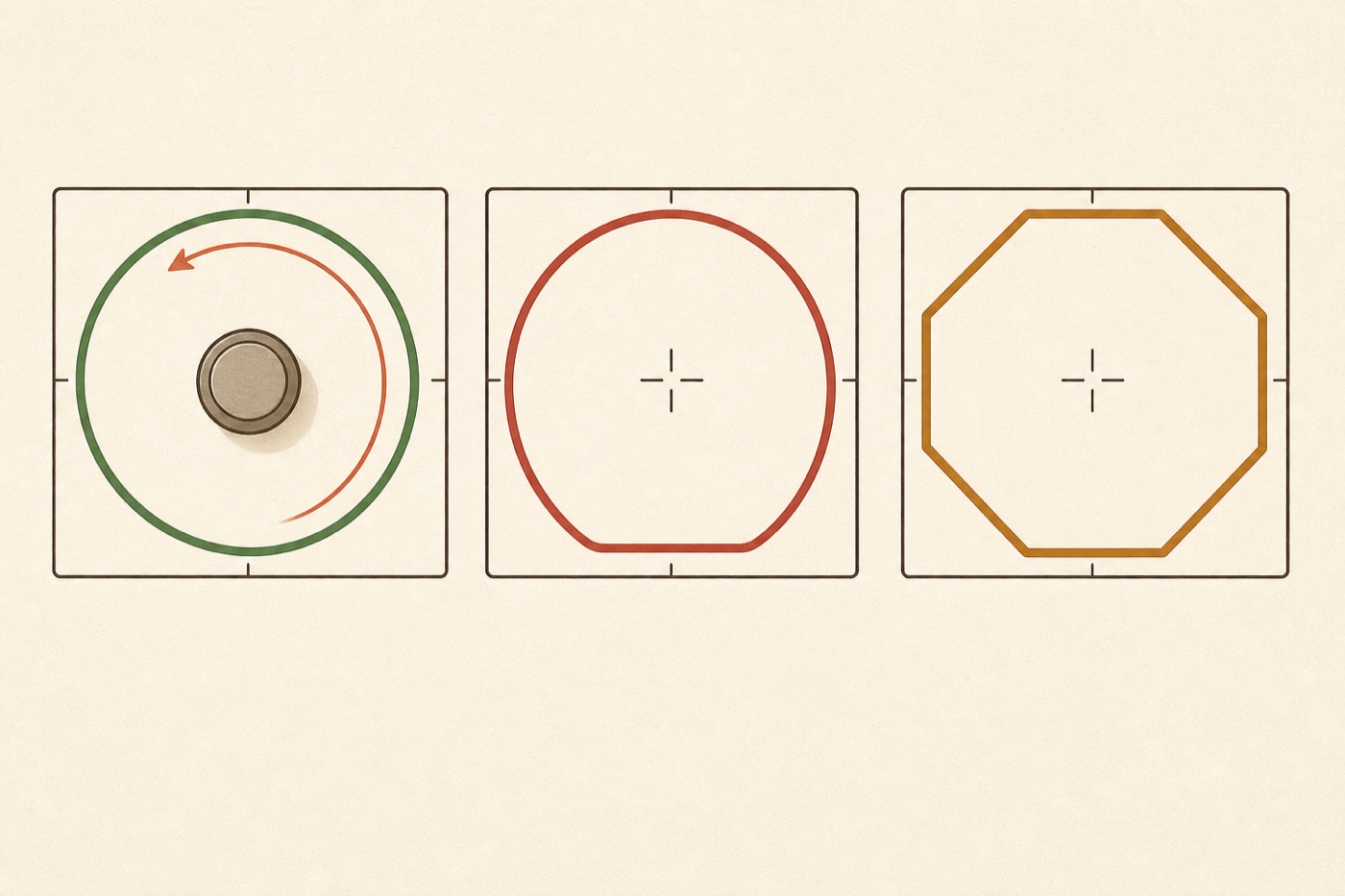 Healthy — round
Flat spot — worn
Squared — hits a gate
Healthy — round
Flat spot — worn
Squared — hits a gate
Why circularity matters for aim and control
Most games map the very edge of the stick to maximum speed or maximum turn rate. If your stick can’t reach the rim cleanly in every direction, the game never receives a full-strength input there — so:
- Diagonals feel weak or snap to a cardinal direction, hurting movement in shooters and platformers.
- Aim accelerates unevenly, because the stick over-reports one axis and under-reports another.
- You can’t sprint or steer at full lock toward a specific angle, even though the stick feels like it’s all the way over.
A controller circularity test turns these vague “something’s off” feelings into a visible shape, so you know whether to recalibrate, clean, or replace the stick.
How to run a controller circularity test (in your browser)
A browser-based tester reads the controller through the Gamepad API and plots each stick’s position as you move it — no console screen or extra software required.
Step by step
- Connect your controller to a PC or Mac with a USB cable, or pair it over Bluetooth.
- Open the free stick drift test, which shows each stick’s live position and gate.
- Press any button so the browser detects the controller — a gamepad stays hidden until it sends its first input.
- Rest your hands off the sticks for a moment and confirm each one sits centered (that’s the drift check).
- Now slowly roll one stick all the way around its outer edge, keeping it pressed firmly against the rim for a full rotation, then repeat with the other stick.
- Watch the traced path. It should sweep out a smooth, round circle that reaches the outer ring evenly. Flat spots, squared corners, or sections that fall short are the faults to investigate.
Because the test runs locally in your browser, nothing about your controller is uploaded anywhere — the reading happens entirely on your own device.
What a healthy circularity trace looks like
Roll each stick around its edge and check three things:
- Round, not squared — the trace is a smooth ring, not a box with rounded corners. A squared-off shape means the stick is hitting a mechanical gate before it reaches a true circle.
- Reaches the rim evenly — the path touches the outer ring in every direction, including all four diagonals. A trace that falls short on one side can’t deliver full input there.
- Centered and stable — the circle is centered on the middle of the gate, and the stick returns to dead center when released. An off-center trace usually points to drift or a calibration offset.
Run this once on a stick you know is good and you’ll recognize “normal” instantly — after that, a controller circularity test takes ten seconds to read.
Circularity vs. drift vs. dead zone
These three stick checks get mixed up, but they describe different things:
- Drift is movement reported at the center — the stick sends input while you’re not touching it. That’s the resting-position fault behind unwanted scrolling or a slowly turning camera.
- Circularity is the shape at the outer edge — how faithfully a full rotation traces a circle. It’s about reach and accuracy at full tilt, not the resting point.
- Dead zone is the small area around center that games deliberately ignore so a tiny bit of drift doesn’t register. A large dead zone can mask drift but also makes small, precise movements feel unresponsive.
A controller circularity test mainly reveals the second problem, but because the same screen shows the resting position and gate, you’ll often catch drift and dead-zone issues in the same pass.
Common circularity problems and what they mean
- Flat spot on one side. The stick can’t reach full extent in that direction — usually a worn potentiometer or a sensor that’s lost part of its range. Recalibrating sometimes helps; persistent flat spots mean the stick module is wearing out.
- Squared or octagonal shape. The stick is hitting a physical gate before tracing a true circle. Some controllers are built this way; if it used to be round and now isn’t, grit under the stick is a likely cause.
- Off-center circle. The trace is round but not centered, which points to a calibration offset or early drift. Recalibrate the controller and re-run the test.
- Jittery or noisy edge. The line shakes instead of tracing smoothly — often dust on the contacts. A little isopropyl alcohol worked around the stick base can clean it up.
- Re-test after every fix. The whole value of a controller circularity test is the before-and-after: if a flat spot fills back out to a clean circle, the fix worked.
Frequently asked questions
What is a controller circularity test? It’s a check that plots an analog stick’s position while you rotate it around its edge, showing how close the input traces a true circle. A round trace means the stick reaches full strength evenly in every direction; a distorted one means it doesn’t.
Do I need special software? No. A browser-based controller tester reads the stick through the Gamepad API and plots the trace for you — nothing to install, and it works on PC or Mac.
Does poor circularity mean my controller is broken? Not always. Some sticks are slightly squared by design, and grime or a calibration offset can be cleaned or reset. A trace that’s getting worse over time, or has a clear flat spot, points to a worn stick module.
Is circularity the same as stick drift? No. Drift is unwanted input at the center; circularity is the shape at the outer edge. Run the stick drift test and you can read both on the same screen.
Which controllers work with the test? Any controller the browser sees through the Gamepad API — Xbox, PlayStation, Switch Pro and most PC pads — wired or over Bluetooth.
Don’t guess whether your stick is the problem — run a controller circularity test and look at the shape. Open the stick drift test, roll each stick around its edge, and watch the trace: a clean circle means the stick is healthy, and a flat or squared trace tells you exactly where it’s failing. While you’re there, check the resting position for stick drift too.